New in the SumatraPDF pre-release builds:
Read Aloud in main menu, continuous reading and word highlight
The main menu bar has a Read Aloud menu. Start Reading From Top reads from the visible page through to the end of the document instead of stopping after one page. Start Reading Selection reads only the selected text. The word being spoken is highlighted on the page. The toolbar Read Aloud button’s drop-down has Pause and other playback controls.
Translate selected text with AI tools
If Grok Build, Claude Code or OpenAI Codex is installed, the selection’s right-click menu can translate the selected text (
CmdTranslateSelectionWithClaudeCode, CmdTranslateSelectionWithGrokBuild, CmdTranslateSelectionWithOpenAICodex). A dialog lets you edit the text and pick the source language (Auto detects it) and the target language, and shows the translation there. The target language is remembered (TranslateToLang).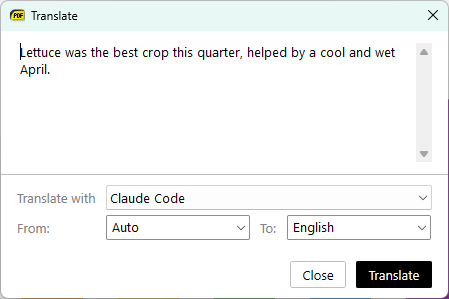
SVG icons for custom toolbar buttons
Custom toolbar buttons defined in
Shortcuts can use ToolbarSvgIcon to show an SVG icon that looks like the built-in icons, instead of a text label. If both ToolbarSvgIcon and ToolbarText are set, the icon is used (#5711).
Search and navigation in the built-in manual
The built-in manual has full-text search (
Ctrl + K), and its window has Back / Forward buttons and shows the current address. Pages are rendered from the Markdown source on demand.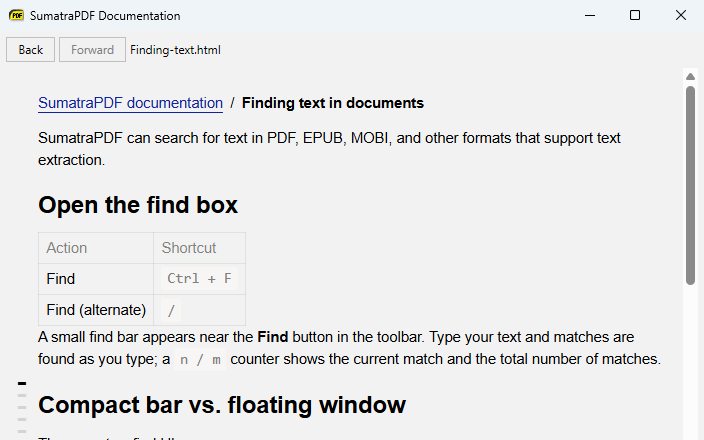
More: changes from June 20, 2026 and the full changelog.