New in the SumatraPDF pre-release builds:
Crop and resize images
When you view an image file,
Crop Image (CmdCropImage) and Resize Image (CmdResizeImage) open an editing window. Drag to crop (arrow keys move an edge by 1 pixel) or resize, then save to a new file. The right-click menu has an Image submenu (Copy To Clipboard, Save, Crop, Resize), which also works for images inside PDFs and other documents.Save images as PNG, JPEG, BMP, GIF, TIFF or WebP
The image save window has a format drop-down: PNG, JPEG, BMP, GIF, TIFF, and WebP when Windows has a WebP encoder installed (it’s only offered if the encoder is found).
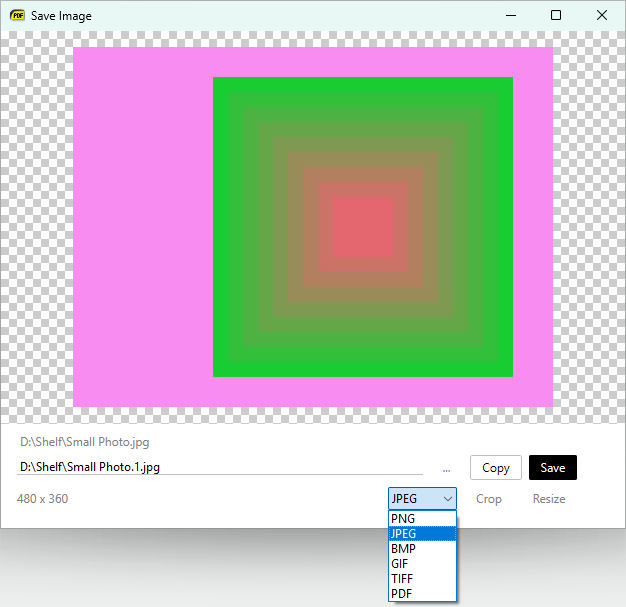
Paste image from clipboard
Ctrl + V pastes an image from the clipboard: it’s saved as a PNG in the Downloads folder and opened.Drag & drop images from a browser
Drag an image from a web browser onto the SumatraPDF window. It’s downloaded to the Downloads folder and opened.
Show Errors for problematic PDFs
If MuPDF reported warnings or errors while loading a PDF, the right-click menu has
Show Errors to see them.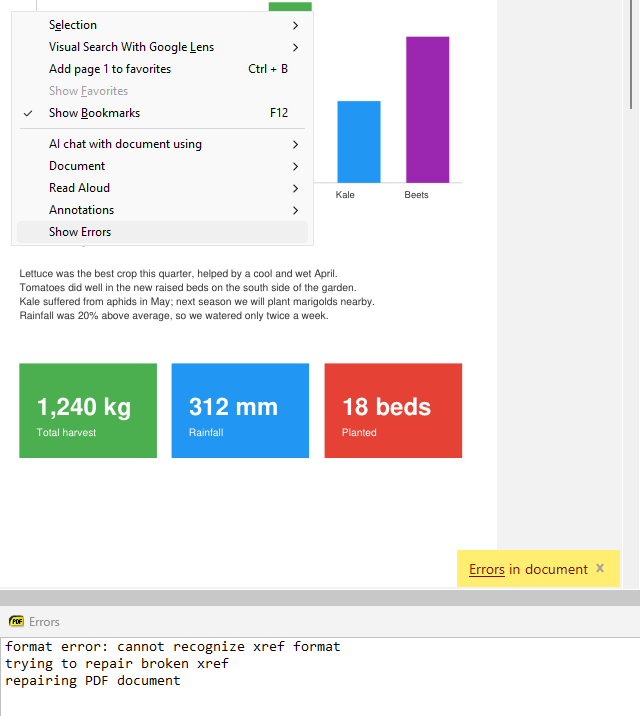
Deleting a file cleans up history
CmdDeleteFile also removes the file from history and deletes its home page thumbnail.Tab and annotation visual tweaks
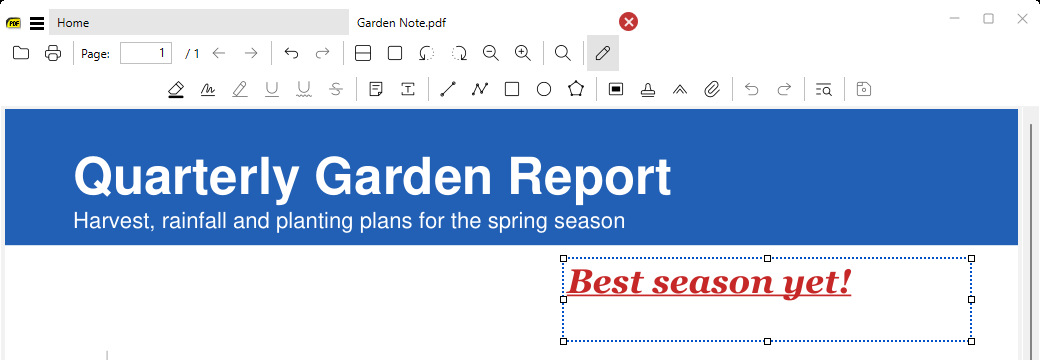
The tab close button has a round hover background. The selected annotation is marked in blue instead of gray, so it’s easier to see.
More: changes from March 29, 2026 and the full changelog.